QuickTC Display
QuickTC Display Modes
The QuickTC has an onboard OLED display. Cycle through the pages by pressing on the OLED display on the right side, closest to the BNC port. The pages let you:
- Confirm you are receiving timecode
- Freeze timecode to read it out over intercom or radio
- Read the user bits
- Confirm the frame rate, including drop frame
- Check the timecode signal level
- Check the battery
Auto return to Timecode Readout
After 30 seconds without a button press, QuickTC returns to the Timecode Readout page (or to No Signal when no timecode is connected).
Timecode Readout
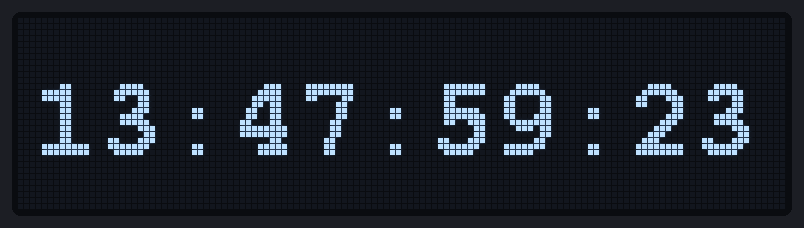
- Shows the incoming timecode as hours : minutes : seconds : frames
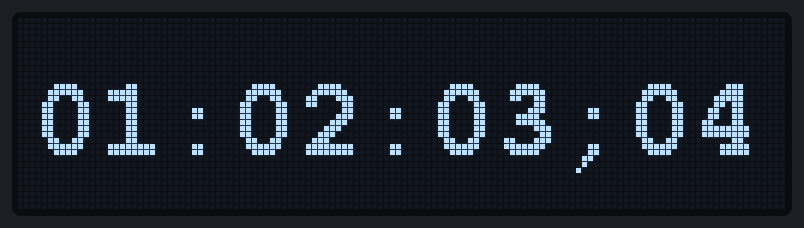
- Drop-frame timecode is marked with a
;between seconds and frames:
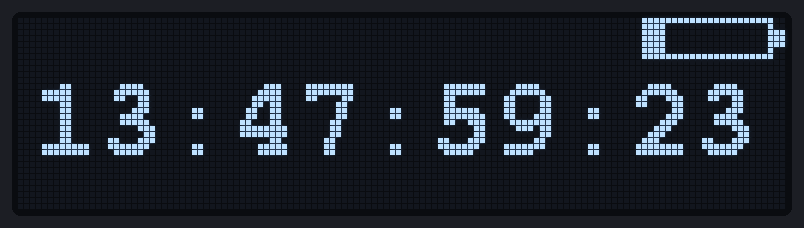
- Below 20 % battery a gauge appears in the top-right corner:
Timecode Freeze
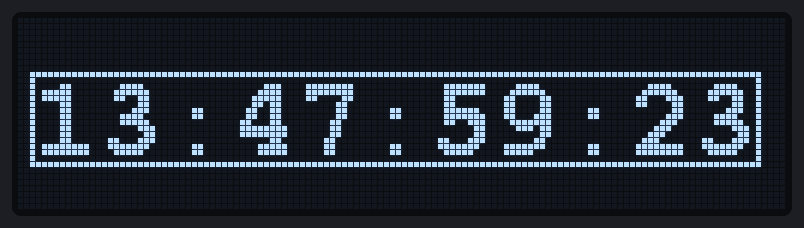
- Freezes the readout at the moment the button is pressed. The frame around the numbers means “frozen”.
- Press again to move on; the readout resumes live on the next lap.
User Bits

- The eight user-bit groups as hexadecimal digits, group 8 on the left through group 1 on the right (the same order as earlier QuickTC firmware).
Timecode Framerate

- 23.98 and 24, and 29.97 and 30, are shown as pairs:

DFis shown for drop-frame timecode; otherwise the rate is non-drop.--is shown for the first two seconds after timecode appears, while the rate is being identified:

Timecode Signal

- The first line shows the timecode signal amplitude, peak to peak.
- The second line rates it against the SMPTE preferred range:
Valid,Low, orHigh.

- Most generators run hotter than SMPTE prefers and will read
High. QuickTC still decodes; if a device has an output-level control, bringing it into theValidrange is the better setting.
Battery
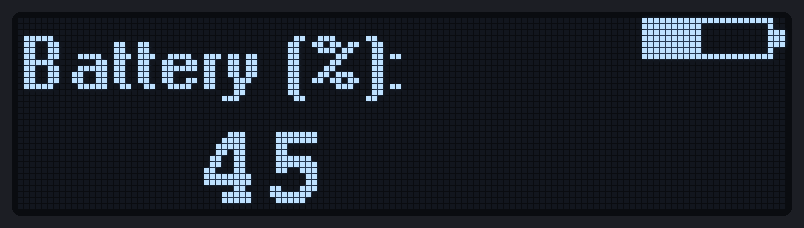
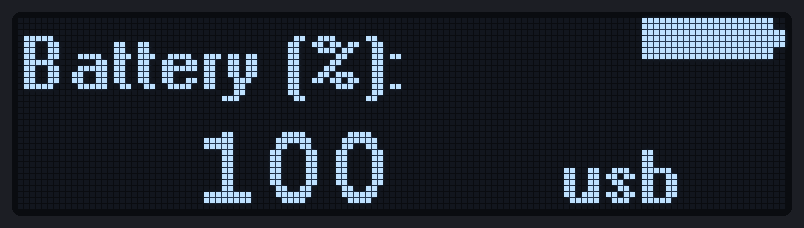
- Remaining charge in 5 % steps, with the gauge.
usbappears while a USB cable supplies power:
Firmware version

- Shown for two seconds at power-on and available as a page. Quote this version when reporting a problem.
No Signal

- Shown when no valid timecode is present. The LED double-blinks about once a second.
Powering down
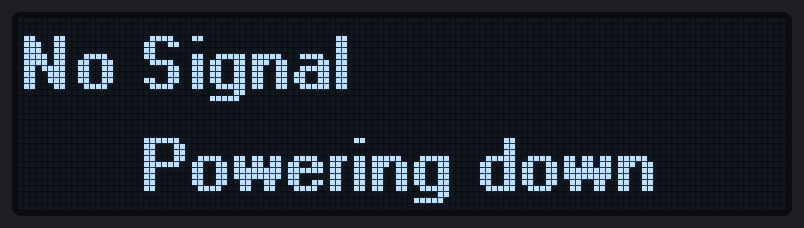
- Shown for a moment before the unit switches itself off (see Powering Off under QuickTC Setup).
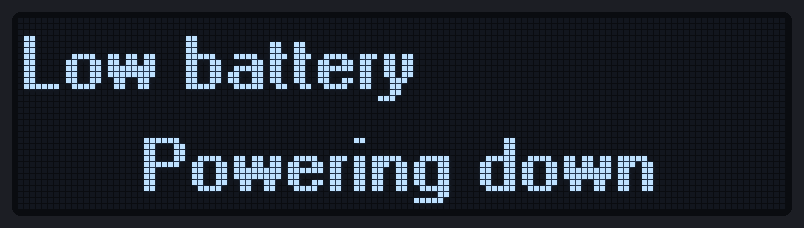
- At 5 % battery the unit switches off to protect the cell and wakes only for a USB cable.